Skip to content

How to Create Add-Ons Tier Pricing
Step 1: Open Add-Ons Tier Pricing
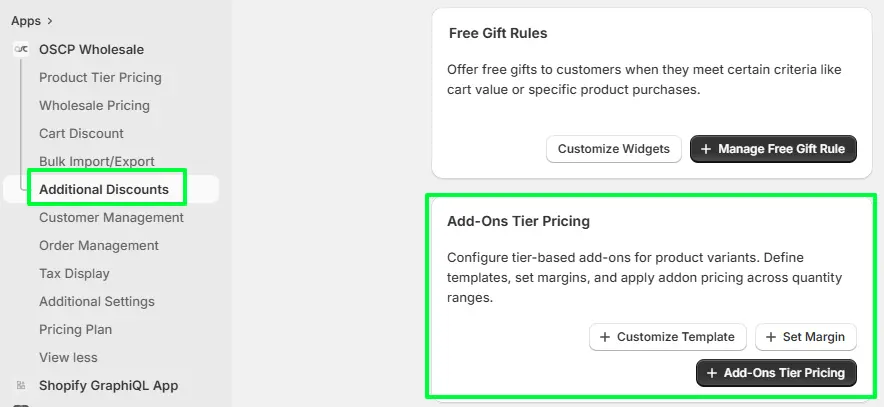
From Shopify Admin:
- Go to Apps
- Open OSCP Wholesale
- Click Additional Discounts
- Scroll to Add-Ons Tier Pricing
Available options:
- Customize Template
- Set Margin
- Add-Ons Tier Pricing
Important Flow
Always follow this order during configuration:
- Create a template (Step 2)
- Configure margins (optional)
- Create the pricing offer
Step 2 — Create or Select Template
Click Customize Template
You can:
- Use a predefined template
- Create a custom template
- Manage existing templates from My Template
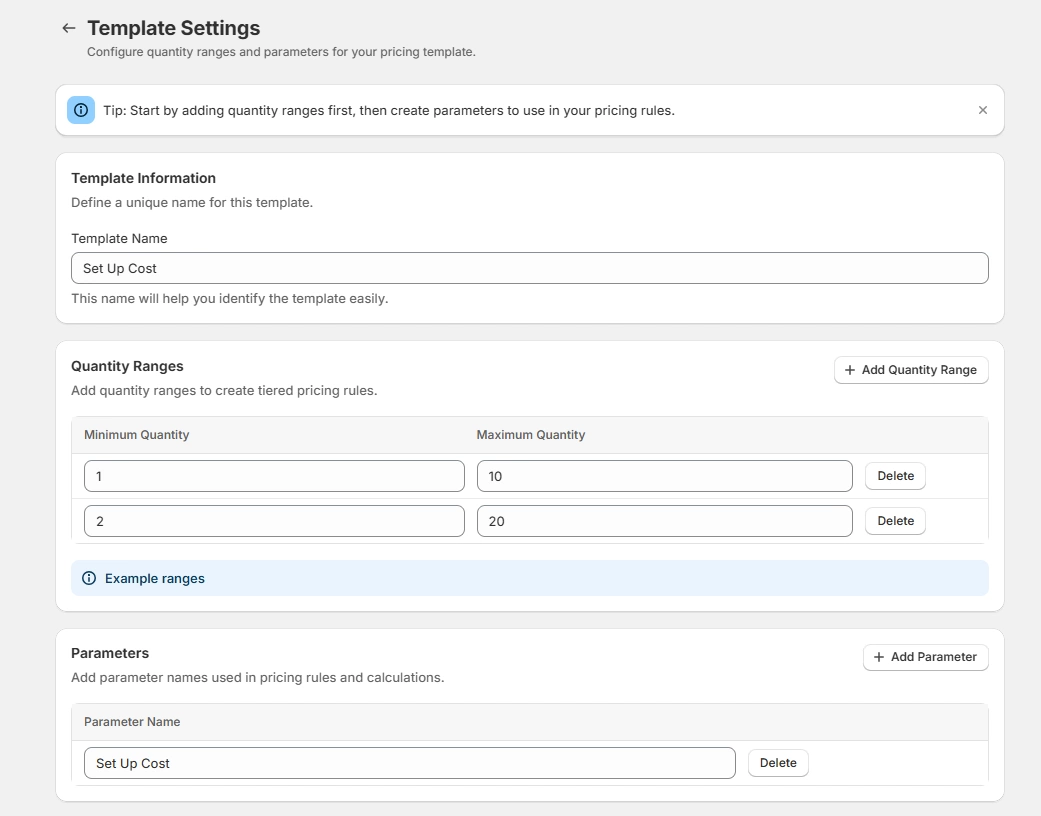
Configure Template
Add the following:
- Template Name
- Quantity Ranges
- Pricing Parameters
Example Parameters
- Blank Item Cost
- Set Up Cost
- Decoration Cost
- Inbound Shipping Cost
Important Notes
- Maximum 10 templates per shop are allowed
- The predefined template
“Custom T-Shirt Template” is read-only
and cannot be edited directly - If you want to modify it :
- Duplicate the template
- Create a new custom version
- Quantity ranges are defined at the template level
- These ranges cannot be changed later at the offer level
After configuration: Click Save
Step 3 — Add-Ons Tier Pricing Offer
Click on Add-Ons Tier Pricing
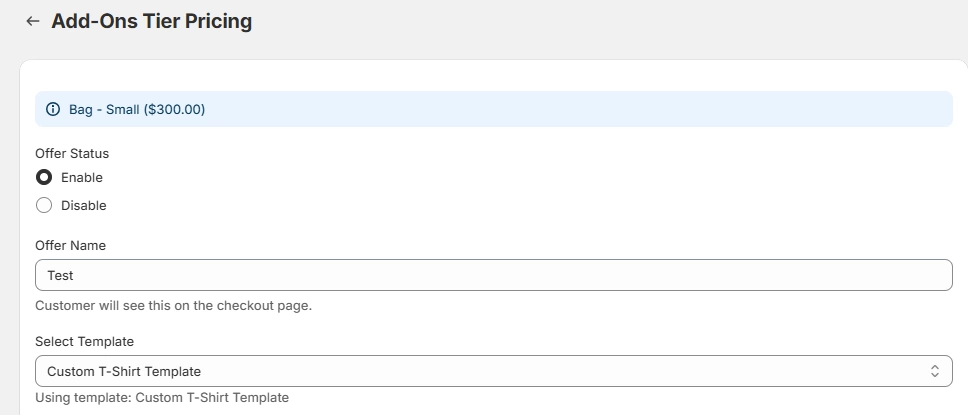
Configure Offer
Offer Status
- Enable
- Disable
Offer Name
This is an internal admin name.
- Visible only in the admin listing
- Not visible to customers
Select Template
Choose the required pricing template.
Important Step — Select Product Variant
To apply pricing:
- Select the product variant
- Variants are selected from the listing page
Step 4 — Configure Tier Pricing
Enter pricing values based on quantity ranges.
Example ranges:
- 1–5
- 6–11
- 12–23
- 24–49
- 50–71
- 72–99
- 100–149
- 150–214
- 215–499
- 500+
Each row represents a pricing parameter.

Important
- These quantity ranges come from the selected template
- The ranges are read-only in this section
- They cannot be edited here
If different ranges are required:
- Create a new template in Step 2
Step 5 — Add Parameters from Template
Click Add Parameter
A dropdown will appear showing:
- Unused parameters from the selected template
Select the required parameter from the dropdown.

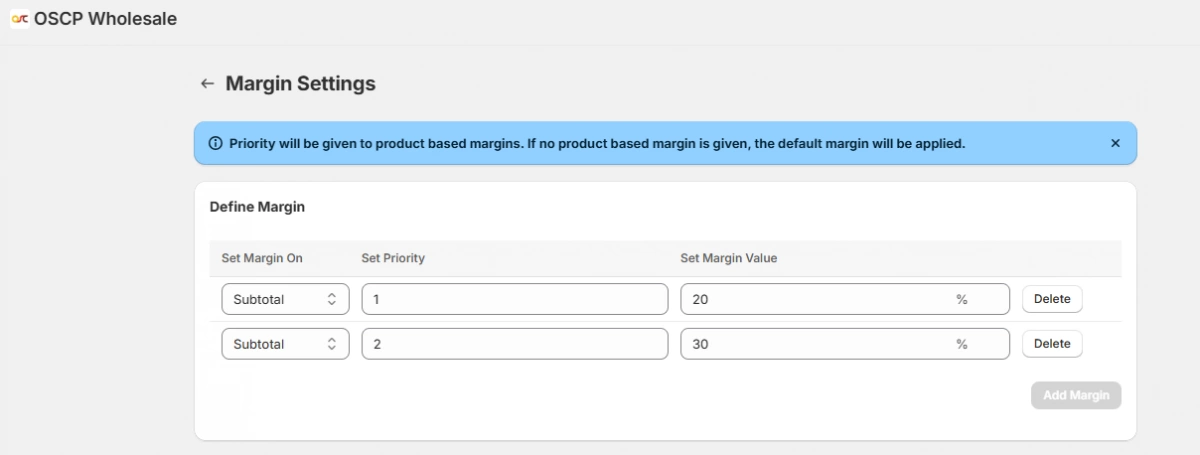
Step 6 — Configure Margins
Click Add Margins
Configure:
- Set Margin On
- Set Priority
- Set Margin Value
Select the required parameter from the dropdown.
Margin Limits
- Maximum 2 margin rows per variant are allowed
- Set Priority accepts only:
- 1 = Primary
- 2 = Secondary
Any other value is invalid.
Margin Application Order (Precedence)
Margins are applied in this order:
-
- Variant-level margin
(highest priority) - Shop-wide default margin
(configured from the Set Margin page) - If neither exists:
- No margin is applied
- Variant-level margin
Step 7 — Copy Pricing to Other Variants
Use Copy Data To Other Variants
Steps:
- Select the target variant
- Click Copy
This quickly duplicates the same pricing configuration to another variant.
Step 8 — Enable Widget from Additional Settings
- Open OSCP Wholesale
- Go to Additional Settings
- Locate Add-Ons Tier Pricing Widget
- Enable the widget
- Save settings
The pricing table will now display on the product page.
Step 9 — Save the Offer
After configuration:
- Review pricing details
- Verify margin settings
- Click Save
Step 10 — Test on Storefront
Open the product page where the offer is applied.
Verify:
- Tier pricing table displays correctly
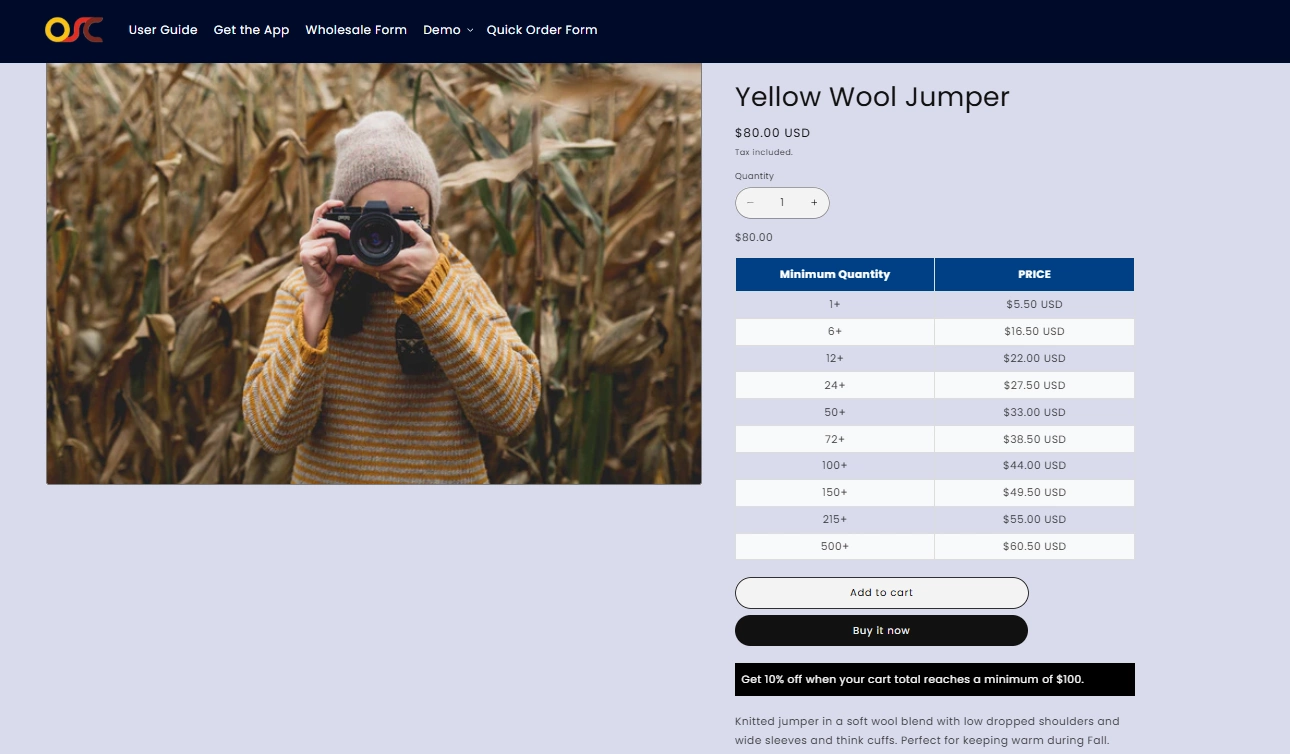
- Quantity pricing updates properly
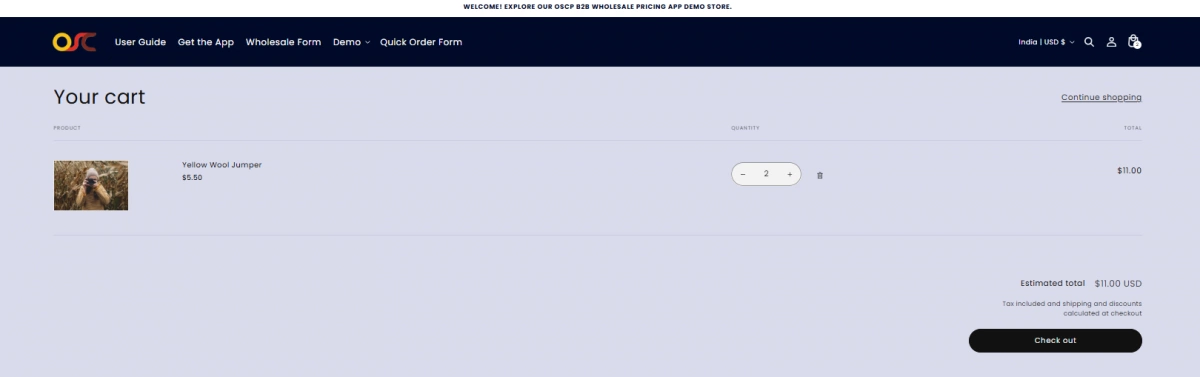
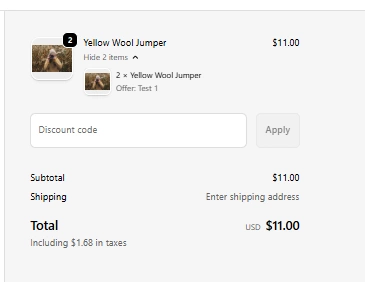
- Add-on pricing appears in cart and checkout