Skip to content

How to Set Up Extra Fee
Step 1: Open Extra Fee Settings
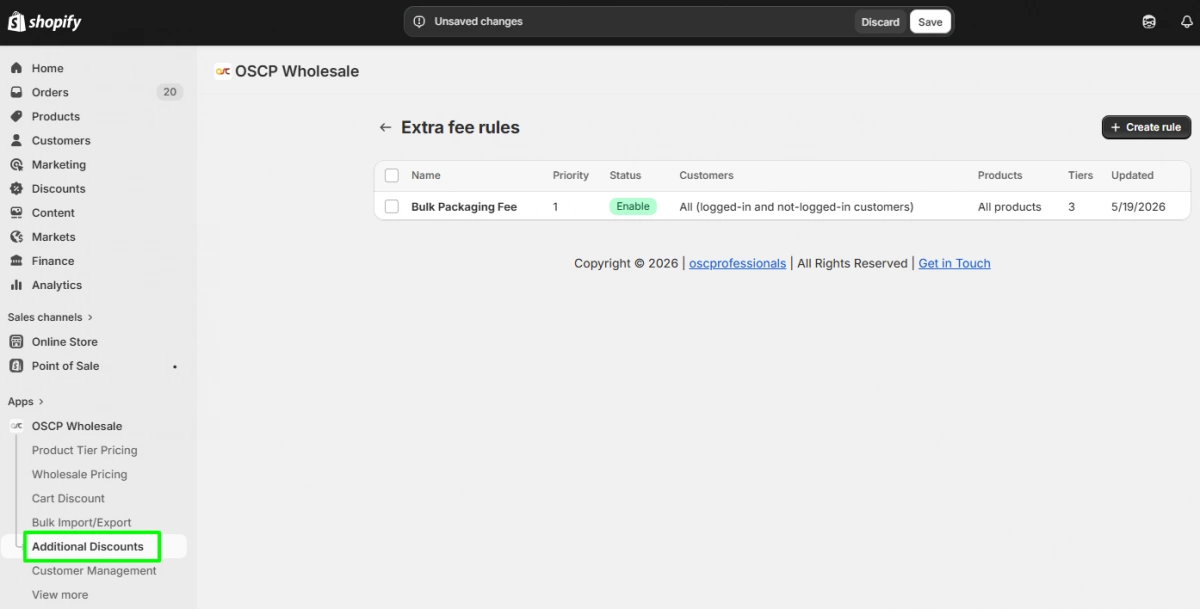
Go to Additional Discount → Free Gift Rules
Shopify Admin → OSCP Wholesale App → Additional Discounts → Extra Fee
Click:
- Manage Rules
- Create New Rule
Step 2: Add Basic Settings
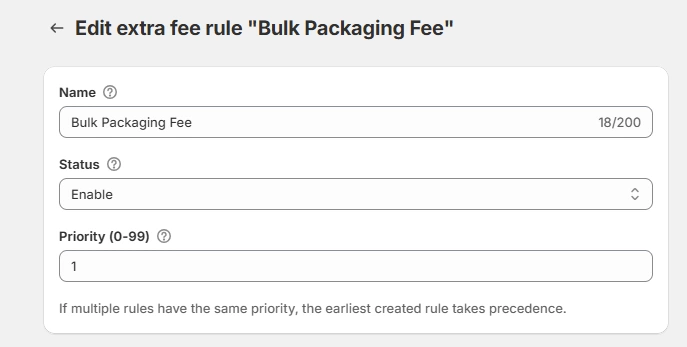
Enter the following details:
- Rule Name
- Status (Enable/Disable)
- Priority
Step 3: Select Customer Conditions
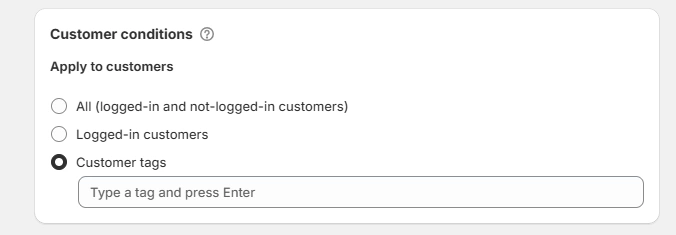
Choose which customers the fee rule applies to.
- All Customers → Applies to everyone visiting the store.\
- Logged-in Customers → Applies only to customers logged into their account.
- Customer Tags → Applies only to customers with selected Shopify customer tags (Example: Wholesale, VIP).
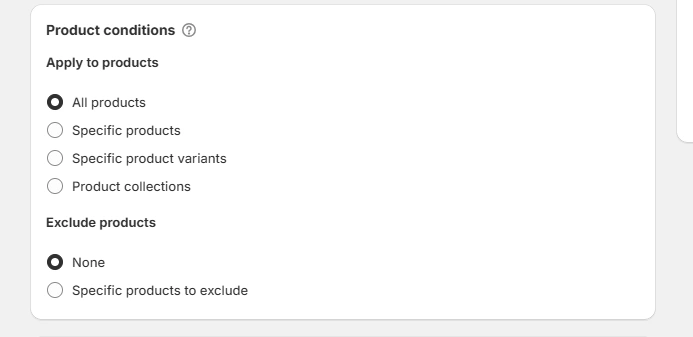
Step 4: Select Product Conditions
Choose products for the fee rule:
- All products
- Specific products
- Variants
- Collections
Optional:
- Exclude specific products if needed.
Step 5: Configure Extra Fee conditions
Select how the fee should be applied.
Quantity-Based Fee
The fee is applied based on cart quantity.
Example:
10 items → $5 fee
Order Amount-Based Fee
The fee is applied based on order total.
Example:
Orders above $500 → 10% fee
Step 6: Select Fee Type
Choose the fee calculation method.
Fixed Fee
Adds a one-time fee per order.
Example:
$5 per order
Fixed Fee Per Item
Adds a fee for each item in the cart.
Example:
$2 per order
Percentage Fee
Adds a percentage-based fee.
Example:
10% extra fee
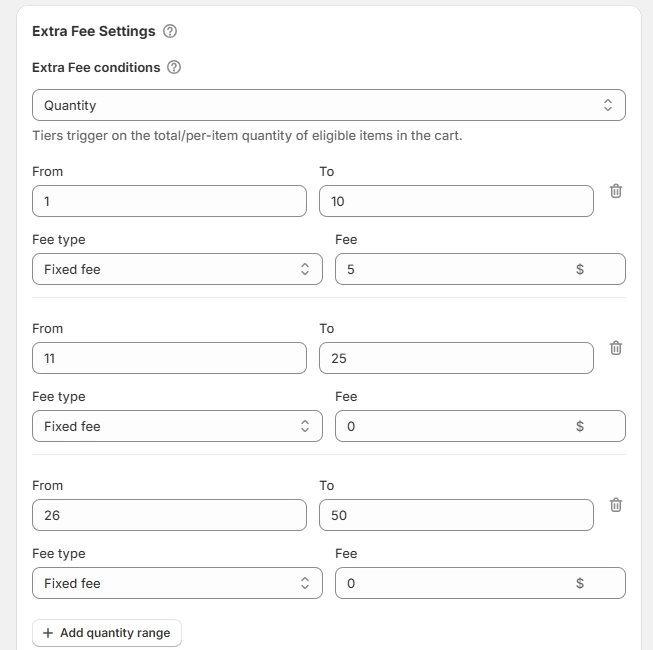
Step 7: Add Quantity Ranges
Click:
+ Add Quantity Range
Example configuration:
| Quantity Range | Fee |
| 1–10 | $5 |
| 11–20 | $10 |
| 21–50 | $15 |
Step 8: Save the Rule
Click:
Save Rule
Your Extra Fee rule is now active.
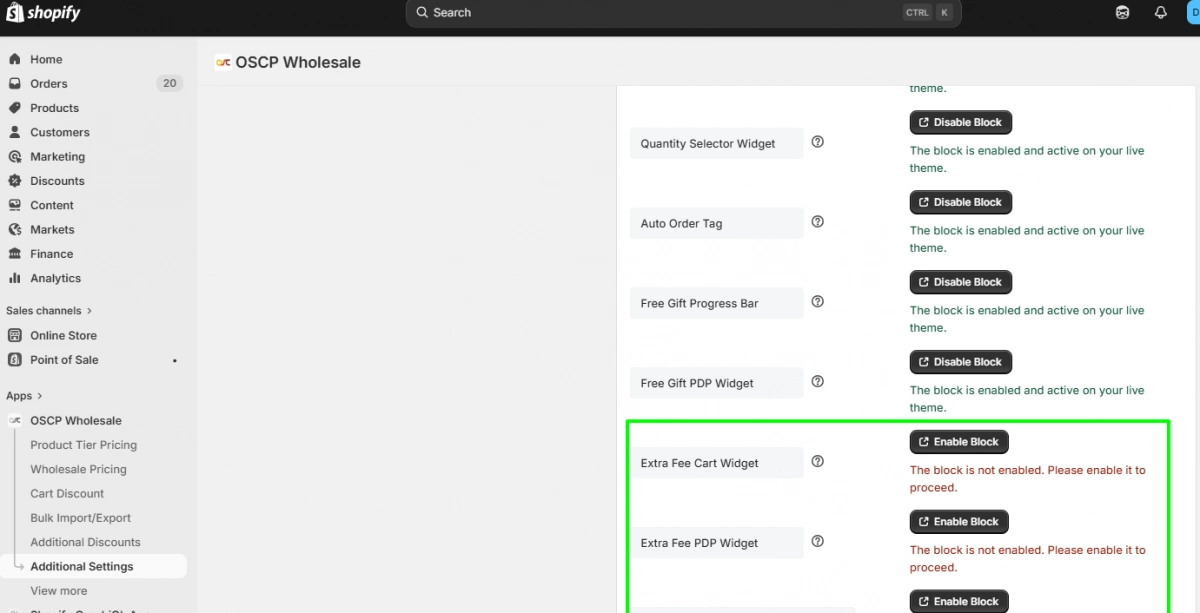
Step 9: Enable Storefront Widgets
Go to:
Additional Settings
Enable:
- Extra Fee Cart Widget
- Extra Fee PDP Widget
These widgets display fee information on the storefront and product pages.
Storefront View
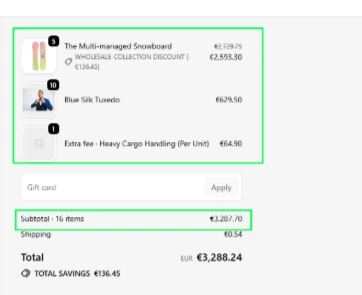
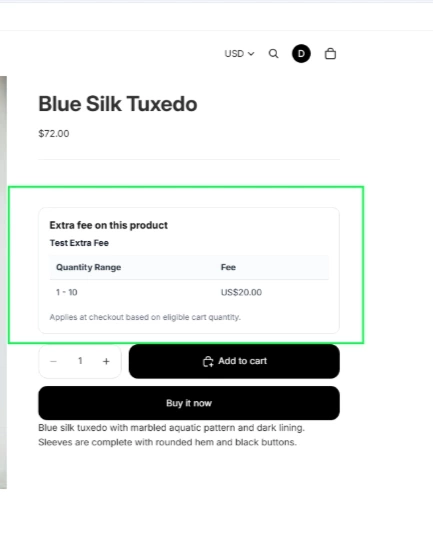
After enabling the widgets, the Extra Fee information will be displayed on the storefront.
- Product Page (PDP): Customers can view the extra fee details before adding products to the cart.
- Cart Page: Applied extra fees will be displayed in the cart summary before checkout.